
Windows Update & Errors Guide
Understand system updates, pending status, and common error codes.
A simple educational visual guide explaining Windows Update statuses, pending installations, hexadecimal error codes, SoftwareDistribution logs, and SFC/DISM diagnostics.
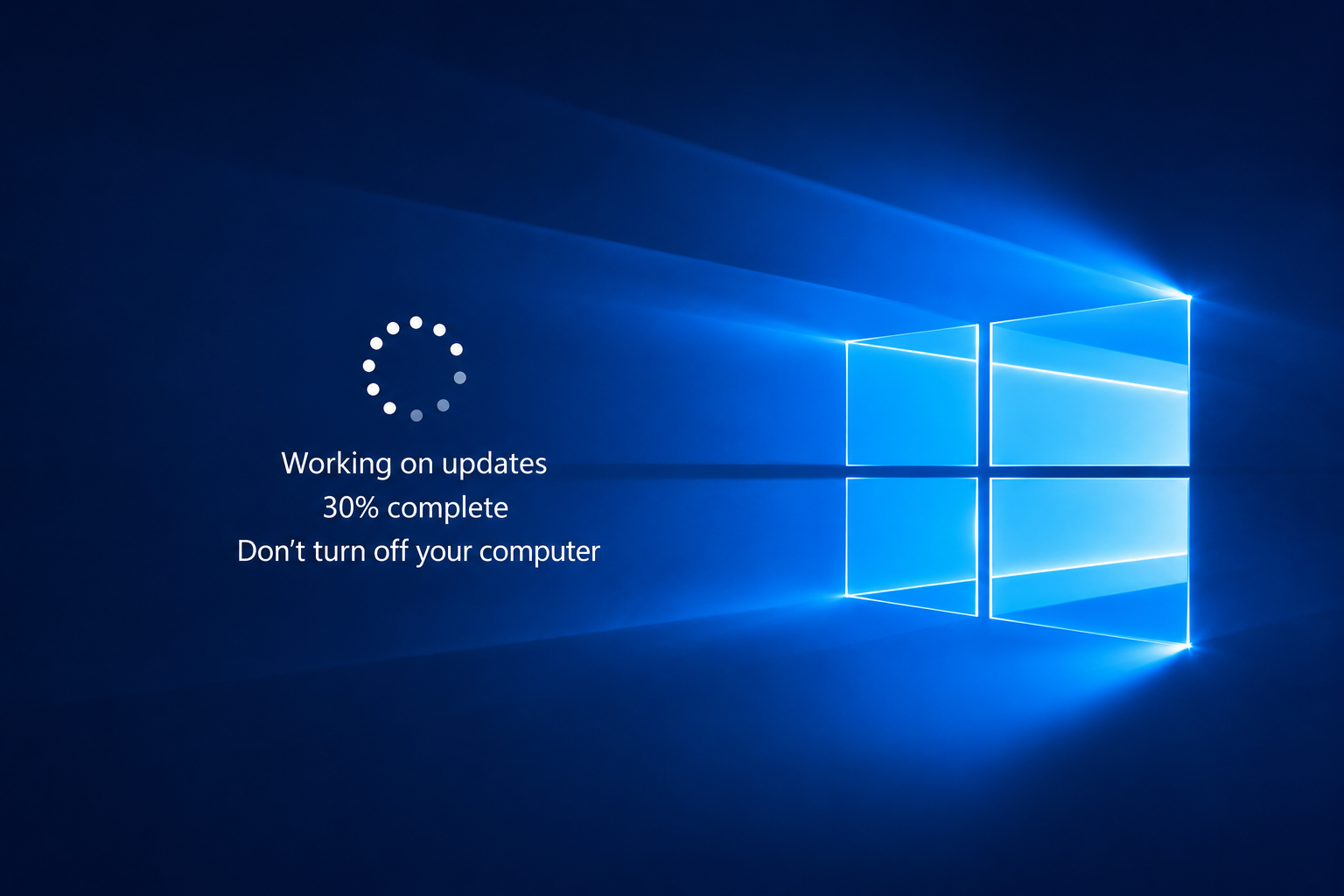
Match the screen with the Windows situation.
These examples explain common Windows Update warning screens in a learning context, so readers can understand what the message usually points to before reading the detailed guide.
Update Pending
The settings screen shows updates ready to download or waiting for restart. This means Windows has verified and staged the files but requires a system reboot to install them.
Error Code 0x80070002
A specific hex code appears indicating missing files or installation errors. The system installer has run into locked paths, corrupted directories, or missing registry keys.
Update Loop Stuck
Windows says "Undoing changes" or loops on startup during installation. This happens when a driver conflict or system file error blocks the update mid-way, forcing a rollback.
Update Service Disabled
System update checks fail immediately with service connection warnings. The background Windows Update client service has stopped or been blocked by a system policy error.
Corrupt System Files
The system shows error notifications or freezes during boot or update checks. This indicates critical Windows library files are missing or modified, blocking installer execution.
Driver Conflict Alert
Update fails because of incompatibility with existing graphic or chipset drivers. The new system files clash with older hardware driver configurations.
Where users usually check Windows Updates.
Windows Settings, the Update Troubleshooter wizard, and the Microsoft Update Catalog portal are key locations.
Windows Update Settings
The central Windows control screen showing download status, update history, and active hours restart settings.
Windows Update Troubleshooter
Built-in diagnostic wizard that scans update database registries, service keys, and network connection status automatically.
Microsoft Update Catalog
The official Microsoft online database where individual update packages can be searched and downloaded manually.
Windows Update basics
Before understanding installation failures or hex error codes, it helps to understand the update path. A system update requires service communication, directory space, and registry rewrites.
Cumulative Updates
Monthly packages containing security patches, bug fixes, and core library modifications.
Update Service Spooler
The Windows background service that downloads and stages cabinet update files.
Hexadecimal Codes
Standard error codes (e.g. 0x800...) pointing to specific registry or directory failures.
Common signs users may notice
These signs usually appear before users check Windows settings or run troubleshooter diagnostics.
Pending restart alerts
System notifications asking you to schedule a reboot to apply files.
Hex error screens
Numeric error codes appearing during failed installations in settings.
Startup boot loops
Windows attempting to install files and then rollback changes on restart.
Connection warnings
Alerts saying the system cannot connect to online update servers.
Start with simple visual guides.
These guides explain common learning areas for Windows Updates with clean flow, simple wording, and visual step-by-step images.
Update Stuck
6 visual steps to troubleshoot updates that freeze during download or installation.
Error Codes Guide
6 visual steps to decipher and resolve common hexadecimal update error codes.
Windows Update pending
6 simple visual steps to manage and complete updates waiting for system reboots.
What Windows Update does
Windows Update connects your PC to Microsoft servers. The service checks database updates catalog, downloads compressed cabinet (.cab) files, verifies security signatures, and rewrites registry paths.
Windows Update facts
Reboots unlock system files
Active system files cannot be modified while Windows is running. A reboot is required to swap these files safely.
Update service requirements
Windows Update database checks require the wuauserv and background services to be active.
Hex codes pinpoint errors
Hexadecimal codes point to specific conditions, like missing folders (0x80070002) or network blockages (0x80244007).
Quick checklist
This checklist is for learning and awareness only. It helps readers understand the common order in which Windows Update topics are usually reviewed.
Verify active internet connection
Ensure update packets can download completely from servers.
Check pending restart notifications
A pending reboot blocks new updates from executing.
Run Windows Update Troubleshooter
The utility checks service locks and database indexes automatically.
Audit C: Drive free space
Verify space for cabinet extraction (keep above 15-20GB).
Run SFC and DISM diagnostics
System file checker scans and repairs corrupt library links.
Match the hex code in the catalog
Identify specific catalog updates for manual download if needed.
Status meanings
Pending install, service registry missing, system rollback, and catalog match are different messages. Each phrase points to a different stage of the installation path.
Pending Install
Update packets are staged but waiting for active hours reboot to apply changes.
Registration Missing
The Windows update service local registration files are corrupted or missing.
System Rollback
An error occurred mid-update, forcing Windows to rollback changes to prevent boot locks.
Catalog Match
The update package needs to be manual-searched and downloaded via Microsoft Catalog website.
Detailed explanation
Why system update alerts appear
A Windows update is not a simple file download. It is a core operating system modification. This depends on a chain of connections: service authentication, SoftwareDistribution caching, cabinet file staging, and registry rewriting on boot.
When updates fail with a hex code, they are reporting that a specific step in this installer path failed. For example, error `0x80070002` typically reports that the local database directory contains mismatched file headers.
Registry health affects installer execution. If system libraries are corrupted by a disk error or conflicting driver, the update spooler fails verification, triggering rollbacks. DISM and SFC tools scan and rebuild these library indices.
Network settings and firewall rules also block communication. If the update client cannot establish a handshake with Microsoft servers, the download fails. The Update Troubleshooter resets these background channels.
Common questions
Windows Update FAQs. Explore typical questions about pending restarts, update loops, and hex codes.
This page is for learning Windows Update concepts.
Your Good Guide provides educational reading only. This page does not offer live support, phone support, remote access, repair service, driver installation service, or paid troubleshooting.
Live Help
No phone support
Diagnostic
No remote access
Software
No software sales
Verification
Official sources linked
Continue learning
Learn more driver concepts. Explore related educational guides about audio, graphics, network, USB, chipset, Bluetooth, and other driver topics.