
Router & Networking Guide
Understand router lights, Wi-Fi drops, and wireless range.
A simple educational visual guide explaining router lights, Wi-Fi frequency bands, SSID configuration, password security, connection drops, and gateway admin panels.
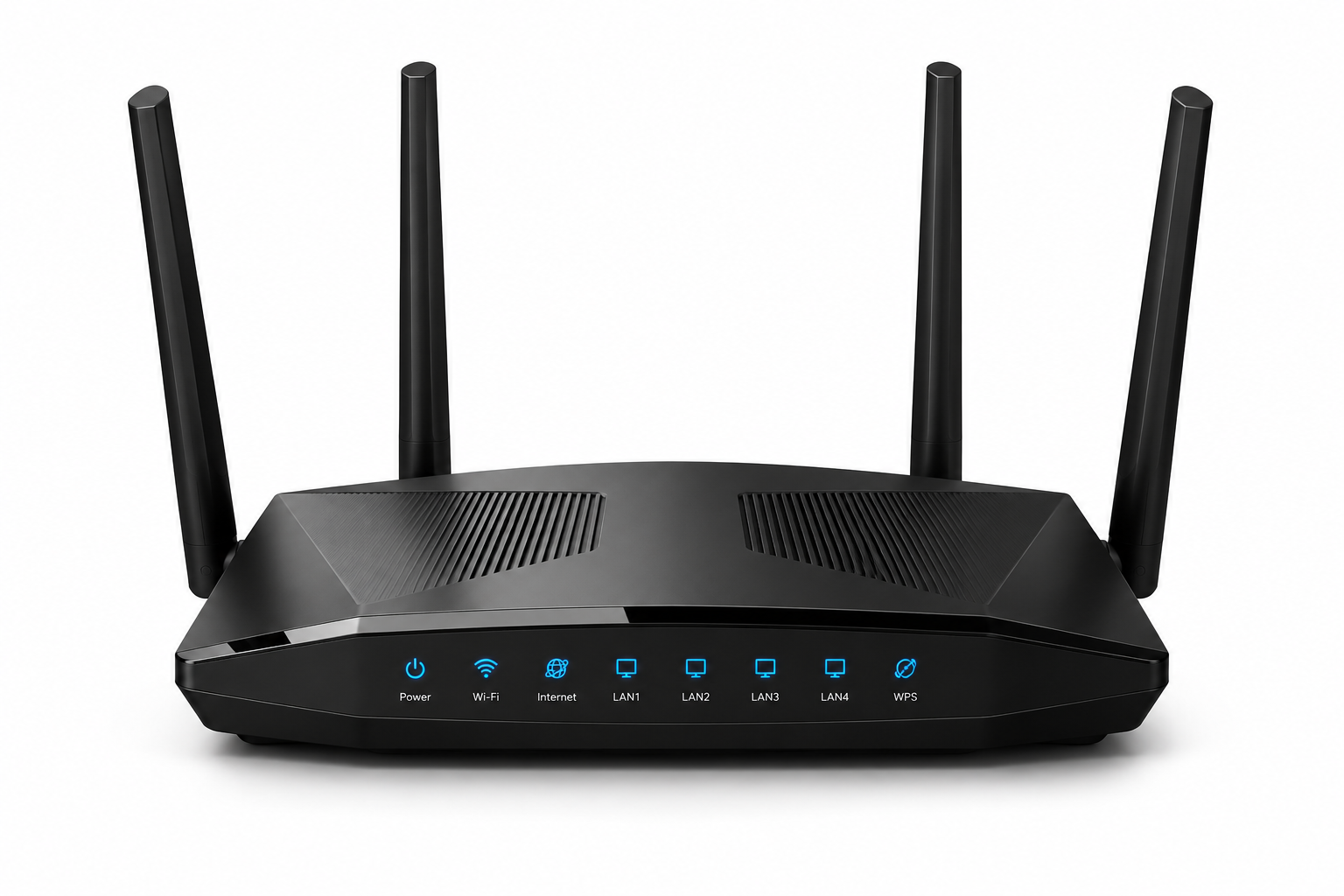
Match the screen with the router situation.
These examples explain common router screens in a learning context, so readers can understand what the message usually points to before reading the detailed guide.
No Internet Light
The router is on, but the internet light is orange, red, or blinking slowly. This usually means the computer or router is not getting a WAN signal from the ISP modem.
Wi-Fi Drops Frequently
Connection drops when moving away or at specific times. This is often related to channel overlap, signal interference from other devices, or wireless dead zones.
Password Not Accepted
Joining Wi-Fi shows password error even when typed correctly. This can relate to security protocol changes (WPA2/WPA3), system memory cache, or uppercase caps locks.
SSID Not Showing
The wireless network name does not appear in the available networks list. This can mean SSID broadcasting is disabled, the router is starting up, or is too far away.
Slow Wi-Fi Speeds
Connected to Wi-Fi but pages load slowly. This usually relates to local congestion, high bandwidth use by background tasks, or distance from the antenna.
Admin Panel Unreachable
Cannot open 192.168.1.1 or 192.168.0.1 settings page. This usually means the computer is not connected to the router gateway local network.
Where users usually check router status.
Modem settings, browser gateway addresses, active network adapters, and command diagnostic tools are key checking areas.
Router Admin Panel
The browser configuration dashboard (usually accessed via 192.168.1.1 or 192.168.0.1) that manages passwords, range, and wireless channels.
Network Connections
The Windows settings panel showing your active Wi-Fi or Ethernet network adapter profiles.
Command Prompt
Diagnostic terminal window where commands like `ipconfig` or `ping` are typed to verify the IP path to the gateway router.
Router learning basics
Before understanding connection alerts or Wi-Fi drops, it helps to understand the normal communication path. A router requires an incoming signal path, active antennas, and correct gateway addressing before local devices can access the web.
Signal frequency
2.4GHz (range) and 5GHz (speed) bands manage local connection paths.
WAN vs LAN
WAN connects to the ISP modem, LAN routes data to local wired devices.
DHCP Server
Assigns unique local IP addresses to each device automatically.
Common signs users may notice
These signs usually appear before users check router settings or try to diagnose hardware status.
Amber/Red lights
Modems or routers showing communication warnings on the panel.
Limited access
Connected to Wi-Fi but showing "No Internet Connection" notice.
WPS flashing
Device pairing security mode active on the router front panel.
Dead zones
Places in the home where signal blocks or drops completely.
Start with simple visual guides.
These guides explain common learning areas for router connection with clean flow, simple wording, and visual step-by-step images.
Wi-Fi signal troubleshooting guide
8 visual steps to optimize and troubleshoot your Wi-Fi signal strength and router placement.
Router not working
8 comprehensive visual steps to diagnose and repair common router operational and port issues.
Fix No Internet Connection
8 simple visual steps to restore your internet connection when the router stops working.
What a router does
A router acts as the traffic controller for your local network. It takes the single internet feed coming from your modem and distributes it securely to multiple laptops, phones, and devices.
Router networking facts
Placement matters
Elevating the router and placing it centrally prevents local signal blockages.
Firmware updates
Updating the router software improves Wi-Fi security and signal stability.
Range limits
Wireless signal range decreases as it passes through solid concrete walls.
Quick checklist
This checklist is for learning and awareness only. It helps readers understand the common order in which router connection topics are usually reviewed.
Is the router turned on?
Power light, indicator display, and heat vents.
Is the WAN cable secure?
Inspect the Ethernet line connecting router to the ISP modem.
Are the lights indicating errors?
Amber, orange, or flashing light symbols on the front.
Are you on the correct band?
Choose between 2.4GHz for distance or 5GHz for speed.
Has the system been rebooted?
Unplug power cable, wait 30 seconds, and restart.
Can you access the gateway IP?
Check connection access using gateway IP browser path.
Status meanings
Connected but no internet, SSID hidden, signal interference, and DHCP IP conflict are different messages. Each phrase points to a different part of the network communication path.
Connected, No Internet
Your device is linked to the router local network, but the router cannot fetch data from the ISP feed.
Hidden SSID
The router is broadcasting the signal, but the visual name list advertisement is turned off.
Signal Interference
Radio waves are blocked or scattered by appliances, walls, or surrounding Wi-Fi networks.
IP Address Conflict
Two devices on the same network were assigned the same local IP, causing connection blocks.
Detailed explanation
Why router connection alerts appear
A router does not work as a single isolated device. It is a bridge between your local devices and the wider internet. This depends on a chain of connections: the ISP line brings the signal, the modem translates it, the router distributes it wirelessly, and your device receives it using a network adapter.
When a router displays an orange or red light, it is reporting that it cannot fetch data from the modem. The physical router is active, but the internet communication path is broken. Re-auditing cables or running a power reboot sequence resets this interface.
Frequency bands play a big role in signal strength. The 2.4GHz band travels far and easily passes through walls, but is slower. The 5GHz band is much faster but has a shorter reach and is blocked by solid barriers. Mismatched band selection often causes dropping networks.
Hidden SSIDs and IP conflicts can make troubleshooting look complicated. An SSID hidden from available network lists requires users to add the profile parameters manually. IP conflicts can be cleared by renewing DHCP leases or restarting the router to trigger new IP allocation.
Common questions
Router connection FAQs. Explore typical questions about router lights, password setup, and signal range.
This page is for learning router connection concepts.
Your Good Guide provides educational reading only. This page does not offer live support, phone support, remote access, repair service, driver installation service, or paid troubleshooting.
Live Help
No phone support
Diagnostic
No remote access
Software
No software sales
Verification
Official sources linked
Continue learning
Learn more driver concepts. Explore related educational guides about audio, graphics, network, USB, chipset, Bluetooth, and other driver topics.